
I recently found myself looking at Windows CE devices as part of my DistrictCon Junkyard competition entry, Quacking Between the Lines. (Sidenote - I had a blast and would highly recommend it! I managed to clinch a win for Most Engaging Presentation!)
With only 12 minutes to present, I glazed over a lot of the general info and tooling, so I thought to write up more about that.
I might do a Part 2 with an expanded version on the exploit I presented at DistrictCon, so stay tuned!
Device & Accessories
The MC2180 is a Zebra barcode scanner “mobile computer” running Windows CE 6.0. There are two versions of this, separated by the supported types of scans. The MC2100 is a similar model, but lacks Wifi, Bluetooth, and mics.
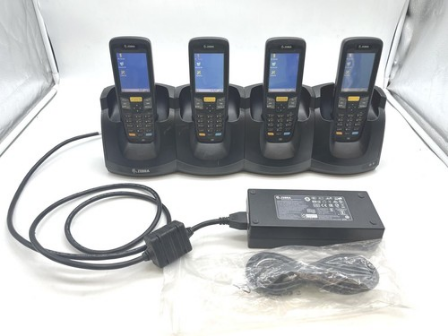
The mobile computer scanners fall into 3 groups: phased out models that only ran Windows CE 6.0 or Pocket PC, mid-generation devices in the process of being phased out that support both Windows CE (typically 7.0) and Android, and the newest models that exclusively run Android.
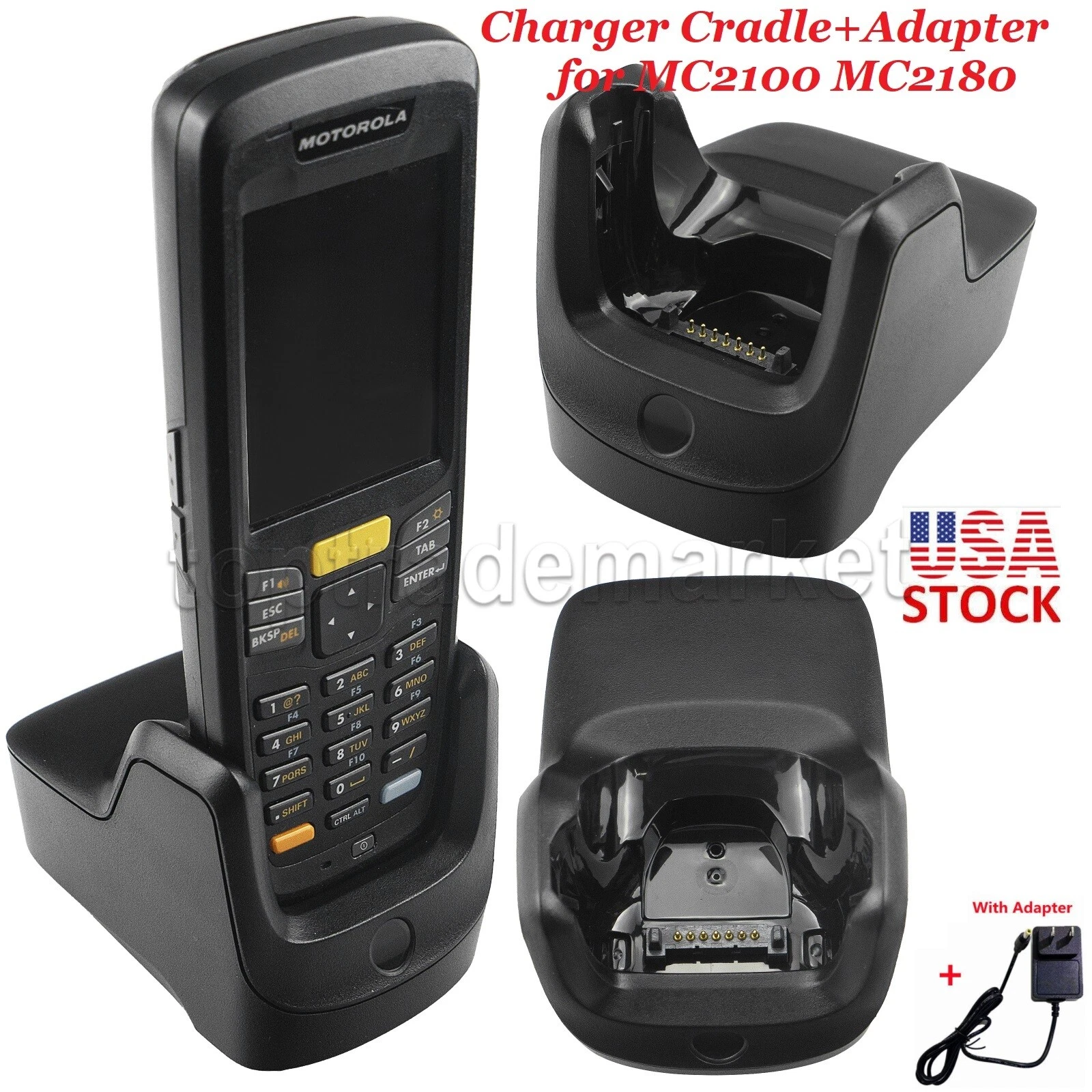
To work with the devices, I had two types of cradle accessories for charging and syncing:
- CRD2100-1000UR Single-Slot USB Cradle: charging and USB connection for a single device
- CRD2100-4000CR Four-Slot Charge-Only Cradle: charging only for 4 devices
The syncing part is very important, as it easily lets you examine the file system, debug code, and do further analysis with the device!
Windows CE
Windows CE is an embedded OS, different from NT, such as Windows XP. Windows IoT has replaced it as of 2015, but Windows CE appears to end up in long-lived deployments, leading to many End of Life (EoL) opportunities in the wild. The Zebra MC2180 barcode scanners I looked at were still running Windows CE 6.0 and only EoL’d May 2025!
I won’t get too much into the architecture or internals, but here are a few resources on that:
- Windows CE Architecture
- Microsoft Windows CE: The New Choice for Dedicated Systems
- Windows Embedded CE 6.0 Fundamentals by Stanislav Pavlov, Pavel Belevsky
- How does Windows CE 6.0 start?
Firmware
Windows CE firmware may come in a number of formats - NK.bin, NK.nb0, .hex, and some vendor-specific.
nk.bin is the Windows CE kernel and OS image produced by Platform Builder, Microsoft’s toolchain for building custom Windows CE operating systems for hardware.
nk.nb0 is the raw version of the data in ROM for the bin file, specific for that particular vendor/device, It’s also referred to by Microsoft as the “absolute binary data format” (.abx).
Zebra has MC2100 firmware downloads on their site, some of which can be downloaded without a special account. The Full Images worked best for me, as I could get the nk.bin firmware to extract files. Other formats seemed to be some variation of Intel Hex firmware formats that tools had trouble with.
These images start with the file magic of b000ff (I always think it sounds like a dog going “b000ff” hehe). pinkavaj’s b000ff-to-bin.py does a good job at getting nk.bin to a Nb0 format that we can work with to extract files.

dumprom.exe can then go from Nb0 bin to files.
“Verify” NK Images
Some of the other Zebra barcode scanners seem to have NK firmware that has a whole section before the usual “b000ff”. Tools complained about this, but removing this section seemed to work okay.
Here is a step-by-step for the MC2180s I looked at:
Download or extract the firmware. We’ll go with OEM Version 04.34.0130. The ZIP we need is under BSP 04.34.0130 > Full Image - Rev D1 > 2100c60AenUP043430.zip - OS Update Package v04.34.30 Software (English).
-
Unpack the compressed files until you have the .bin file. This will have the b000ff nk.bin file.
1
2
3
4
5
6
7
8

$ unzip 2100c60aenup043430.zip
$ cd OSUpdate/Images
$ file 2100c60AenOS043430.bgz
2100c60AenOS043430.bgz: gzip compressed data, max compression, from NTFS filesystem (NT), original size modulo 2^32 49813387
$ 7z -x 2100c60AenOS043430.bgz
$ cd 2100c60AenOS043430/
$ file 2100c60AenOS043430
2100c60AenOS043430: Windows Embedded CE binary image
-
Use b000ff-to-bin.py to convert the nk.bin file to the raw nk.nb0.
1
2
3
4
5

$ python b000ff-to-bin.py 2100c60AenOS043430
H 2
I 4
L 8
Q 8
-
Use dumprom.exe to dump the ROM contents.
1
2

$ mkdir 2100c60AenOS043430_files
$ ./dumprom.exe -d 2100c60AenOS043430_files 2100c60AenOS043430-80400000-833dc0d4.bin
You’ll get a flat dump of the files since dumprom doesn’t handle the directory structure. With a bit more effort, you might be able to reconstruct it, but this was Good Enough™️ for me.
Development
Modern Windows CE dev seems to be built on the Wayback Machine, as so much of the development and analysis tools are unavailable to download in 2026.
My Junkyard presentation involved exploiting my MC2180 to turn it into a presentation clicker, so I spent a lot of time early on getting a development environment set up.
| Prereq | Use |
|---|---|
| Windows XP | Prereq for most of the follow-on. |
|
Visual Studio 2005 & SP1 OR Visual Studio 2008 |
Prereq for Windows Embedded 6.0. Dev environment. |
| Windows Embedded CE 6.0 & SP1 (Alt) | Core WinCE image toolchain & tools. |
| MC2100 Platform SDK | Target platform to compile for the device. |
| EMDK for C | C APIs to programmatically control scanner functionality. |
Then, to develop for the MC2180, you would set up a project as so:
- File > New > Project…
- Visual C++ > Smart Device (Win32 Smart Device)
- Click through to Platforms
- “MC2100c60 Windows CE6.0 Professional PSDK” should be the Selected SDK.
- Then pick your usual Application Settings - e.g. Windows application, Console application, DLL, etc.
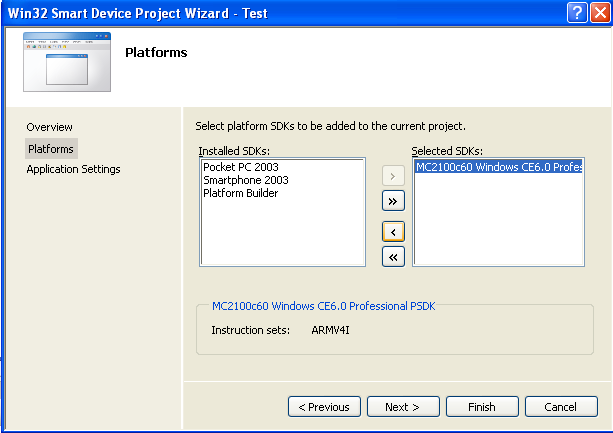
Troubleshooting: If “MC2100c60 Windows CE6.0 Professional PSDK” is not an SDK option, then something went wrong with your MC2100 Platform SDK install. Make sure you have all the prereqs!
Once you install Windows Embedded 6.0 and the MC2100 Platform SDK, you’ll be able to find general platform and API documentation via the help menu. Much of the Windows CE Win32 API is still documented on MSDN (such as ReadFile). While the Win32 API is very similar, read the remarks for nuances on these devices!
You can also find headers, library files, help, and samples under the following directories:
C:\Program Files\Windows CE Tools\wce600\MC2100c60 Windows CE6.0 Professional PSDKC:\Program Files\Motorola EMDK for C\v2.8
Claroty Team 82 also has a great multi-part writeup on Windows CE development & security. Part 1 covers an intro to development: Delving Into Windows CE: Let’s Build an Embedded Windows Application, Part 1
Tools
Now that we’ve covered development, let’s talk about dynamic interaction and analysis of the devices.
ActiveSync provides basic file read/write and file synchronization with the device. This is a good way to examine files on the device if you don’t have immediate access to the firmware.
There is a WinCE 6.0 Emulator for testing basic Windows CE 6.0 programs, but it’s more for generic application testing, and less for device-specific functionality.
Visual Studio Remote Tools is a suite of tools to examine Windows CE devices - files, processes, registry, etc. The suite includes:
- Remote File Viewer
- Remote Heap Walker
- Remote Process Viewer
- Remote Registry Editor
- Remote Spy (~Spy++)
- Remote Zoom In (actually screenshots)
It was great for both an initial triage of the device exploitability and debugging of my PoC (“I’ve stopped the debugger in Visual Studio, but is my process still hung on the device?”).
I found it surprisingly difficult to map listening ports to processes.
netstatlists listening ports, but doesn’t have a switch to show process names or PIDs. Win32 API functions are also unable to give this mapping. In the end, I found it easiest to cross-reference with running processes in Remote Process Viewer and search through binaries/files from the firmware for that port.
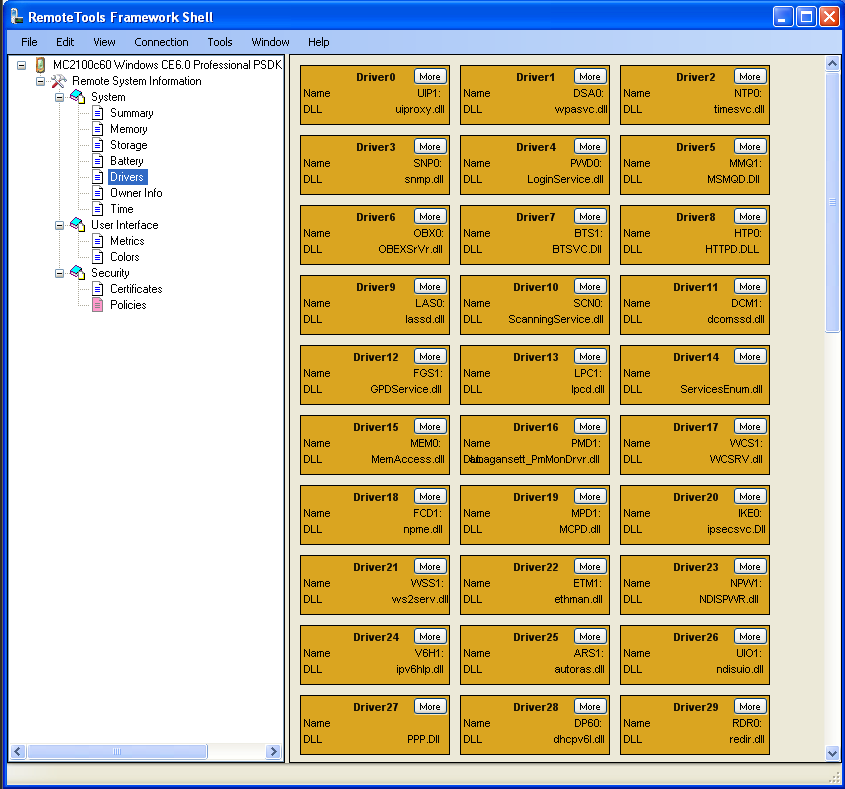
RemoteTools Framework Shell offers a way to view system information, including things like drivers and certificates.
Conclusion
Hopefully this writeup is useful for anybody getting into Windows CE development or device analysis. My research was maybe 40% development environment setup, 40% crafting an exploit chain to execution, and 20% VR.
If you’re interested in diving more into Windows CE, I would again highly recommend the 4 part blog post from Claroty’s Team 82 covering everything from development to debugging to vulnerability research:
- Delving Into Windows CE: Let’s Build an Embedded Windows Application, Part 1
- Delving Into Windows CE, Part 2: Analyzing Windows CE Debugging Constructs
- Delving Into Windows CE, Part 3: Introducing Team82’s Open-Source Debugger
- Delving Into Windows CE, Part 4: Vulnerability Research into a Windows CE-Based HMI Used in the Wild
Until next time!